
Existing setups will continue to work until September 30, 2024. However, we recommend setting up an OAuth app as soon as possible to avoid any disruptions.
Register the app
To enable Google OAuth in Chatwoot, you need to provide the client ID, client secret, and callback URL. You can find the instructions to generate these details here. Once you have followed these steps, you will be able to get a Client ID and Secret.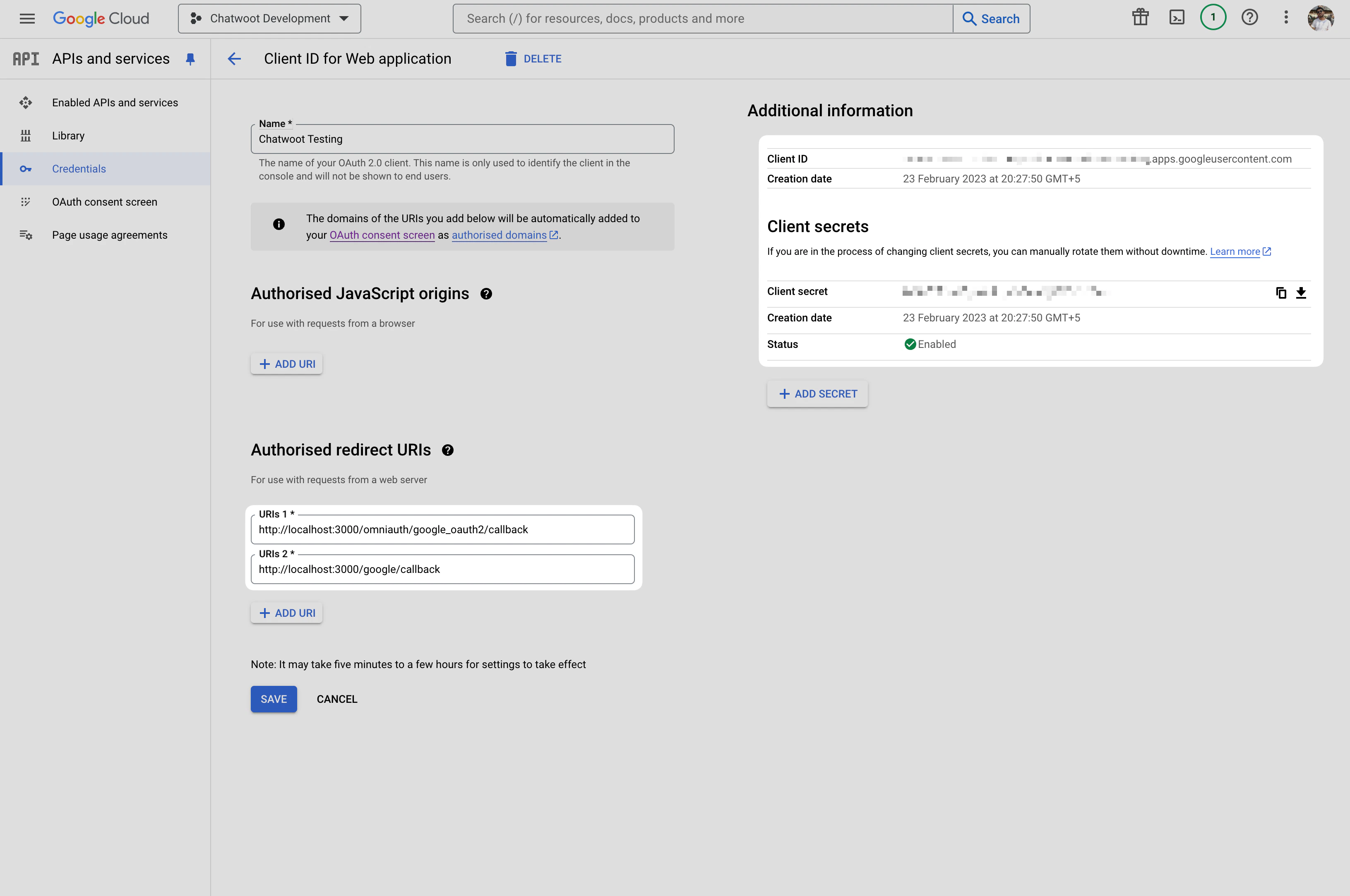
https://<your-instance-url>/google/callback when registering the app. This URL is used to redirect the user back to the Chatwoot instance after authentication.
Set the GOOGLE_OAUTH_CLIENT_ID and GOOGLE_OAUTH_CLIENT_SECRET environment variables in your Chatwoot installation using the values you copied from the Google API Console.
If you have already setup Google OAuth login flow You can use the same app, by simply adding the new callback URL. Do not remove the previous callback URL.
Configure the application
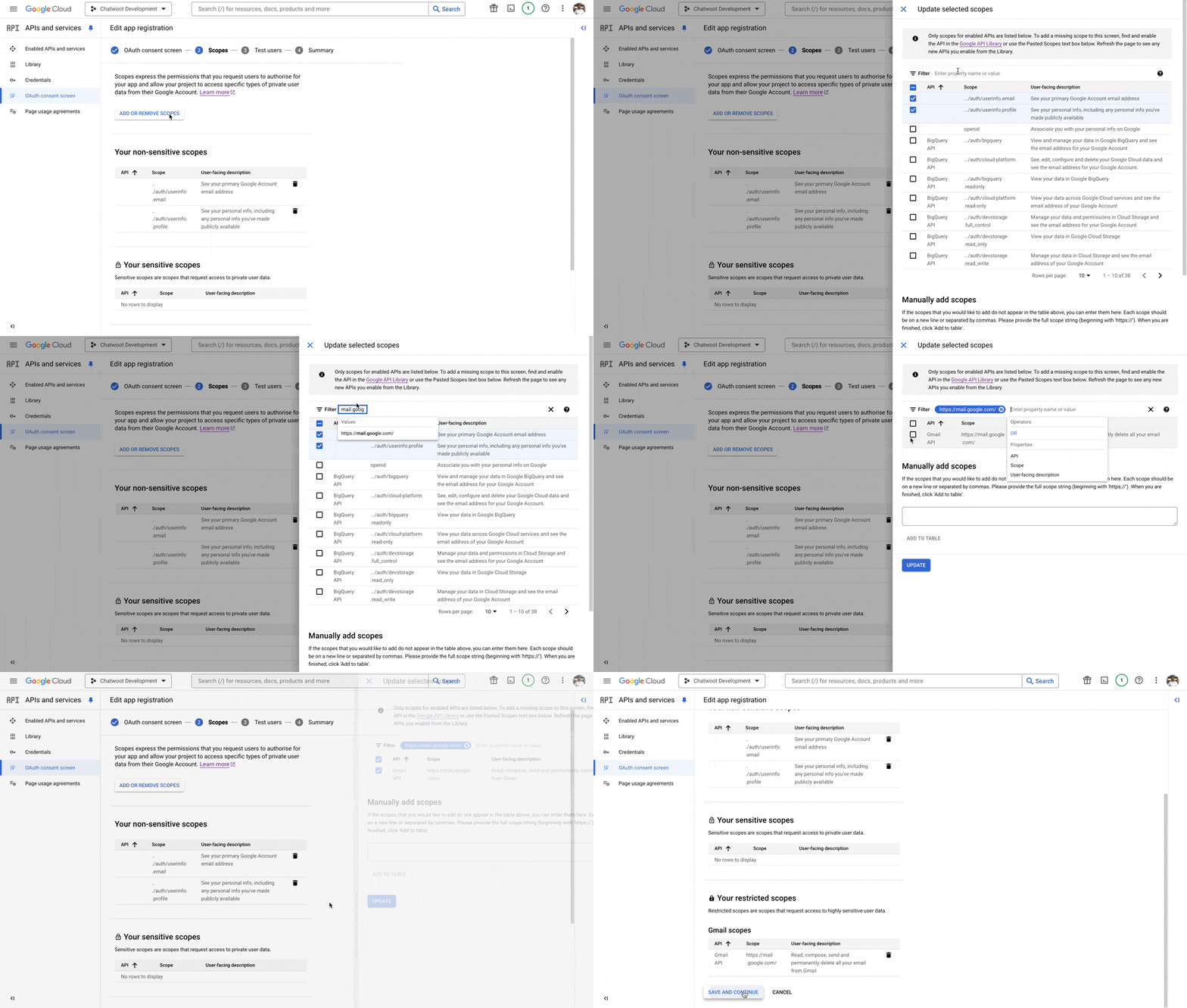
To fetch the emails from the client inbox, you need to configure the correct scopes. The following scopes are required:https://mail.google.com/: To read, send, delete, and manage your email.email: To view the user’s email address.profile: To view the name and picture etc.
- Go to the Google API Console.
- Select the project you created earlier.
- Click on the “OAuth consent screen” tab and click on the “Edit App” button.
- Add the required scopes in the “Scopes for Google APIs” section.
- Click on the “Save” button.
https://mail.google.com/ scope: